
Window Size and Behaviour
The default behaviour of the Dialog window is to be positioned in the centre of the screen and cannot be moved. Other windows can be placed on top. You can change this behaviour with the following command line options.
Either option can be used independently of the other.
Window Visibility
Section titled “Window Visibility”-p or --ontop
Use this option to force the dialog window to be always on top.
Window position
Section titled “Window position”-o or --moveable
Use this option to allow the window to be dragged around the screen.
--position [topleft | left | bottomleft | top | center/centre | bottom | topright | right | bottomright]
Positions the dialog window a the the defined location on the screen
Window Size
Section titled “Window Size”You can change the size to be larger or smaller than the default depending if you have more or less to say in your message or want to display different sizes on different sized displays. Images are scaled accordingly. Text font size remains the same.
-b or --big
This makes the window appear ~25% bigger than normal increasing the appearance of the icon display area or

-s or --small
This makes the window appear ~25% smaller than normal

Window Appearance
Section titled “Window Appearance”You can force either dark or light mode and it will use that appearance regardless of the users current preference
--appearance dark or --appearance light
Mini mode
Section titled “Mini mode”Mini mode is set passing the --mini argument.
Mini mode forces a small window with a modified layout and limited options for displaying content. --title is smaller and centered at the top of the window, or can be disabled with --title none. --message can have up to four lines of text (anything longer will be truncated). --icon when visible takes up the left portion of the window and all other content to the right. --hideicon and --icon none are respected. --button1text and --button2text are available but the info button is not.

If the --progress argument is used, the button area is removed and replaced with a progress bar and a single line of progress text. In order to dismiss the dialog, the command quit: must be passed to the command file.

--style - Configure a pre-set window style
Section titled “--style - Configure a pre-set window style”Changes the default values to alter how a dialog is displayed.
Styles other than --mini have no special attributes and the visual appearance can be acheived by using the various arguments to set window properties.
centered, alert and caution will use the value from --title and add it as a heading to the message area and then disable the title. This places the title underneath the centre displayed icon.
"mini" is functionally equavelent to --mini"centered" will set all the options for centered content"alert" sets a pre-configured dialog window 300x300 and centered content"caution" and "warning" are the same as "alert" with the icon configuredExample of dialog --style alert:
This is the equavelent of typing:
dialog --title none --iconsize 80 --message "### An Important Message \n\nThis contains important message content\n\nPlease read" --messagealignment centre --buttonstyle centre --centreicon --width 300 --height 300Custom Window Sizes
Section titled “Custom Window Sizes”Dialog can be any size you want instead of the default, --small or --big options.
--width and --height can be used to define the dialog size of choice. Content will resize to fit.
swiftDialog supports the use of % as a function of the current screen size, e.g. --width 50% will set the dialog width to 50% of the current screen resolution.

--blurscreen
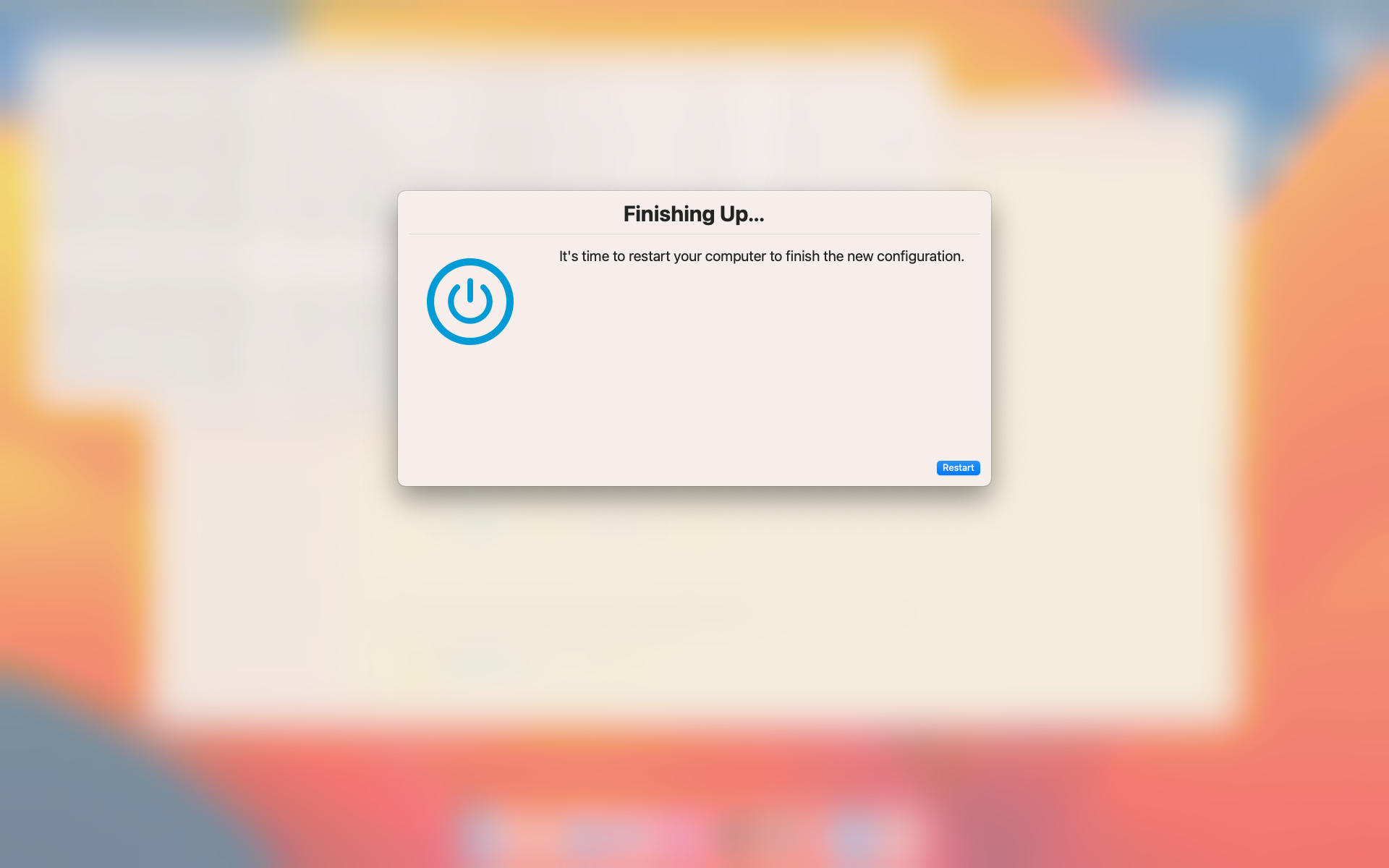
Section titled “--blurscreen”--blurscreen will overlay all displays with a blurred background and place the dialog window above all other windows. This allows for either more focused messaging or for workflows where you don’t want a user interacting with other applications or the desktop (e.g. during onboarding)
Behaviour of --ontop with --blurscreen and existing dialog windows
Section titled “Behaviour of --ontop with --blurscreen and existing dialog windows”If an existing dialog is present with --blurscreen active, using --ontop will cause subsequent dialogs to appear above the blur layer. This allows for running a background dialog and launch additional dialogs and have them visible. It should be noted that if you plan to interact with these dialogs programatically, ensure you use unique command files for each.